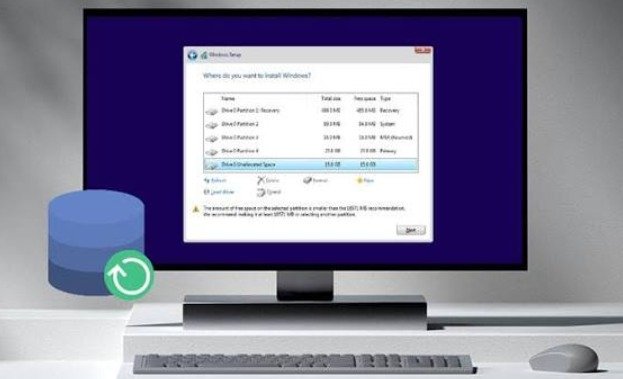


Losing an important partition on a Windows computer can be frustrating, especially when it contains valuable documents, personal photographs, videos, or business files. Sometimes, a partition suddenly disappears from File Explorer, while in other situations, Windows displays it as unallocated space or asks users to format the drive before accessing it.
The good news is that a missing partition does not always mean that Windows means that the stored information is permanently lost. With the right recovery methods and careful handling, users may be able to restore their missing partitions and retrieve important files.
In this guide, we will explain why Windows partitions disappear and how to recover a lost partition safely.
What Causes a Partition to Disappear in Windows?
Before starting the recovery process, it is important to understand the possible reasons behind partition loss.
- Accidental Deletion
One common reason is accidentally deleting a partition while managing disk space or installing Windows. When this happens, the partition may disappear, although some of its original data could remain on the storage device.
- Corrupted Partition Table
A partition table contains information about the location and structure of partitions. If it becomes damaged, Windows may no longer recognize previously existing partitions.
- Disk Formatting
Formatting the wrong drive or partition can make existing files inaccessible. Depending on the formatting method and subsequent disk activity, recovery may still be possible.
- Malware and Virus Attacks
Certain viruses and malicious programs can damage file systems, modify disk structures, or interfere with access to stored information.
- Power Failure or System Crashes
Unexpected shutdowns during disk operations can sometimes cause Windows sometimes cause file system corruption and partition-related problems.
How to Recover a Lost Partition in Windows
There are several approaches to recovering a missing partition. The appropriate method depends on whether the partition has simply lost its drive letter or its underlying structure has been damaged.
Method 1: Check Windows Disk Management
Sometimes, a partition is still present but does not have an assigned drive letter. In this situation, Windows Disk Management may help restore access.
Follow these steps:
- Press Windows + X on your keyboard.
- Select Disk Management.
- Locate the hard drive containing the missing partition.
- Check whether the partition appears without a drive letter.
- Right-click the affected partition.
- Select Change Drive Letter and Paths.
- Click Add and choose an available drive letter.
If the partition is healthy and only its drive letter is missing, it should become accessible again through File Explorer.
Method 2: Use Professional Partition Recovery Software
When a partition has been accidentally Windows Data Recovery Software deleted or its structure has become corrupted, specialized partition recovery software may help identify and restore it.
Most recovery applications scan the selected storage device to locate previously existing partition structures. Some tools also allow users to preview recoverable files before starting the recovery process.
The general steps are:
- Download a trusted partition recovery application.
- Install it on a separate physical storage device.
- Select the disk containing the missing partition.
- Start a quick or deep scan.
- Review the detected partitions.
- Preview important files to verify the results.
- Recover the necessary information to another storage device.
Always check the software’s recovery options before attempting to restore the original partition structure.
Method 3: Recover Files Using Windows File Recovery
Microsoft provides a command-line utility called Windows File Recovery that can help recover certain deleted files from supported storage devices.
Users can install it through the Microsoft Store and use commands to scan the affected drive.
For example, a basic recovery command may look like this:
winfr C: E: /regular /n Users\YourName\Documents\
Here, C: represents the source drive, while E: is the destination drive.
This tool is designed for file recovery rather than rebuilding deleted partition structures. Therefore, it may help retrieve files but does not directly restore a missing partition.
Method 4: Restore Data From a Backup
If the missing partition contains important information, checking existing backups is another reliable option.
Users can restore their files from external hard drives, cloud storage, Windows system images, or third-party backup applications.
Before restoring a complete partition, verify that the backup contains the correct data and select the appropriate destination to avoid overwriting other important information.
Important Precautions Before Partition Recovery
Taking the wrong action during recovery can make data loss worse. Keep these precautions in mind:
- Avoid formatting the missing partition.
- Do not create a new volume in unallocated space.
- Stop saving new files to the affected drive.
- Never install recovery software on the damaged partition.
- Save recovered files to a separate storage device.
- Avoid running repair commands that modify the affected disk before assessing the damage.
If the hard drive makes unusual clicking noises or shows signs of physical failure, stop using it and consider professional data recovery services.
How to Prevent Partition Loss in Windows
Preventing partition loss is easier than recovering information afterward. Users should maintain regular backups of important files and avoid unnecessary changes to disk partitions.
It is also recommended to use reliable antivirus software, keep Windows updated, monitor storage device health, and shut down computers properly.
Before deleting, formatting, or resizing a partition, always double-check the selected drive and make sure important information has been backed up.
Conclusion
Recovering a lost partition in Windows is possible in many situations, depending on the cause of the problem and the condition of the storage device. Windows Disk Management, specialized partition recovery software, Windows File Recovery, and existing backups can all play useful roles in restoring access to important information.
The most important thing is to avoid writing new data to the affected drive before recovery. By following the correct steps and taking preventive measures, users can improve their chances of recovering valuable files and protecting their digital information.